
72% Off – Spencer: Lifetime License | Mac Workspace Manager | Native macOS Spaces, Multi-Display Layouts, Full Screen & Split View Profiles – for Mac

Save Your Perfect Mac Workspace in One Click – Get Back to Work Without Rearranging Windows! Get Spencer Mac App with a Lifetime License at a 72% Discount!
✔ Lifetime License. ✔ Free Product Updates ✔ Customer Support
BUY NOW
Spencer is available for $25. But, you can now get Spencer license with our exclusive discount of up to 72% Discount. This offer is available for a limited time!

Save and Restore Windows, Native macOS Spaces, Multi-Display Layouts, Full Screen & Split View Profiles for Mac Productivity
- Please Notes:
- You may be directed to the bundle page, but it is possible to purchase the software individually.
- If you're having difficulty locating the product on the bundle page, please utilize the browser's search feature with keyword: ''Spencer'' without quotation marks.
- Get an additional $3 discount on all orders more than $30.
- LEGITIMATE: All apps are authentic and have original licenses obtained directly from the creators via contracts.
- INSTANT ACCESS: Fully activated macOS Apps & Windows Software with instant downloads & license key access.
- IMPORTANT: Since the deal vendor does not provide expiration dates, buy the deal while it’s still available.
- Device Activation: 1 Device
- Delivered as a one-time redemption link; your license key is emailed right after redemption
- License can be moved to another Mac
- Minor Updates Included Only
- Lifetime License
Platforms: Mac

ScreenPlace BEST OFFER

Finder Windows BEST OFFER
Parallels Desktop for Mac BEST SELLER

Dock Star BEST OFFER

NotchNook Classic BEST OFFER

Fluent Mac App BEST OFFER
Spencer Mac App License Key Free Giveaway
Unavailable at this moment!
To access the giveaway, kindly provide your email address. Please refrain from closing this page after signing in to receive instructions on how to access the offer at no cost.
NOTES:
– All prices shown here are in listed USD (United States Dollar).
– Such promotional programs are subject to change without notice, from time to time in our sole discretion.
– Data may vary based on different systems or computers.
Spencer Review at a Glance
Managing multiple applications, windows, and virtual desktops on a Mac can quickly become a time-consuming task. You might use one arrangement for writing, another for programming, and a completely different setup for online meetings. When you switch between activities, disconnect an external monitor, or restart your computer, your carefully arranged windows may no longer be in their original positions. Finding the right applications, restoring window sizes, and organizing everything across multiple displays can interrupt your concentration and slow down your daily routine.
Spencer is designed to solve this workspace management problem.
What Is Spencer?
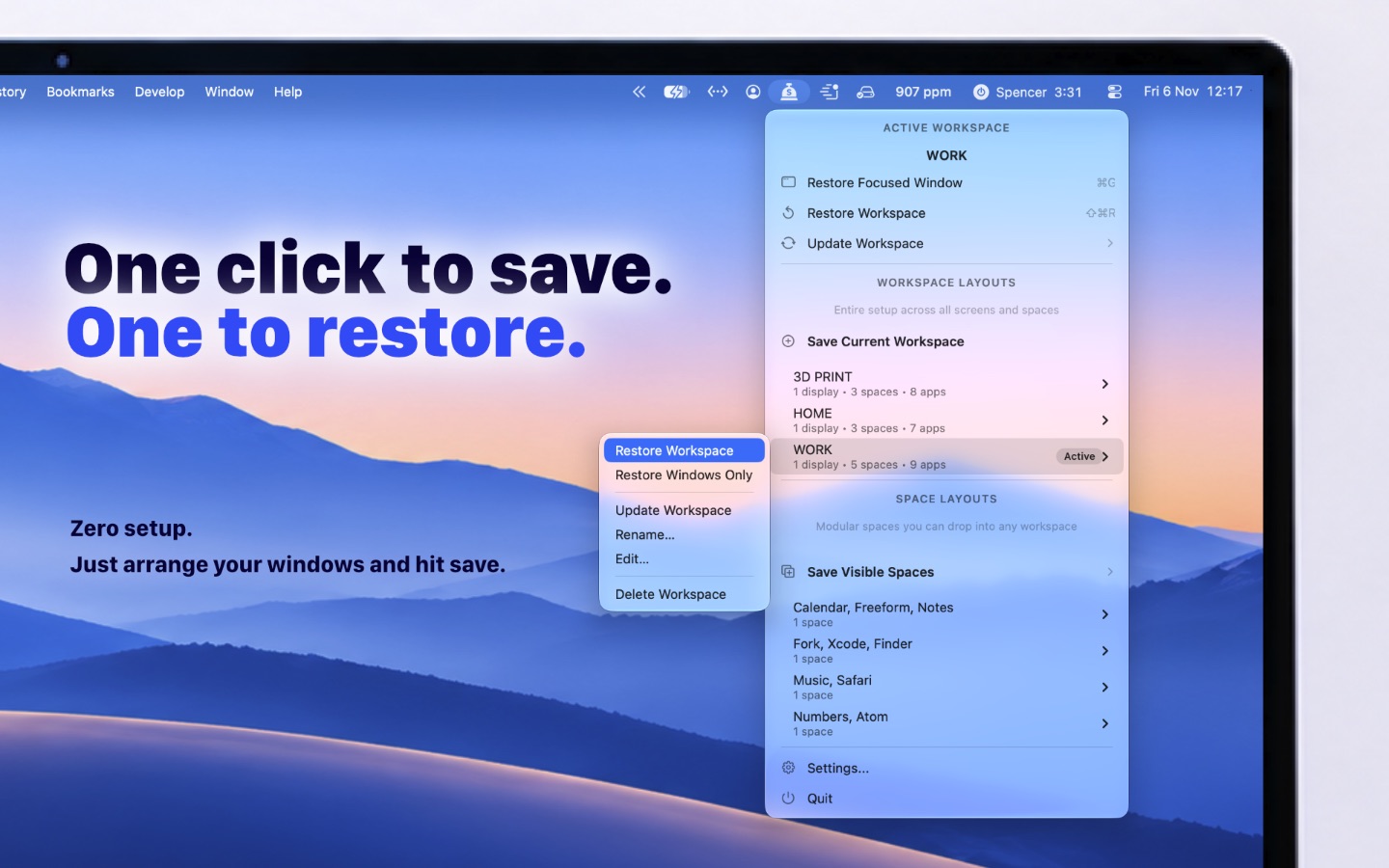
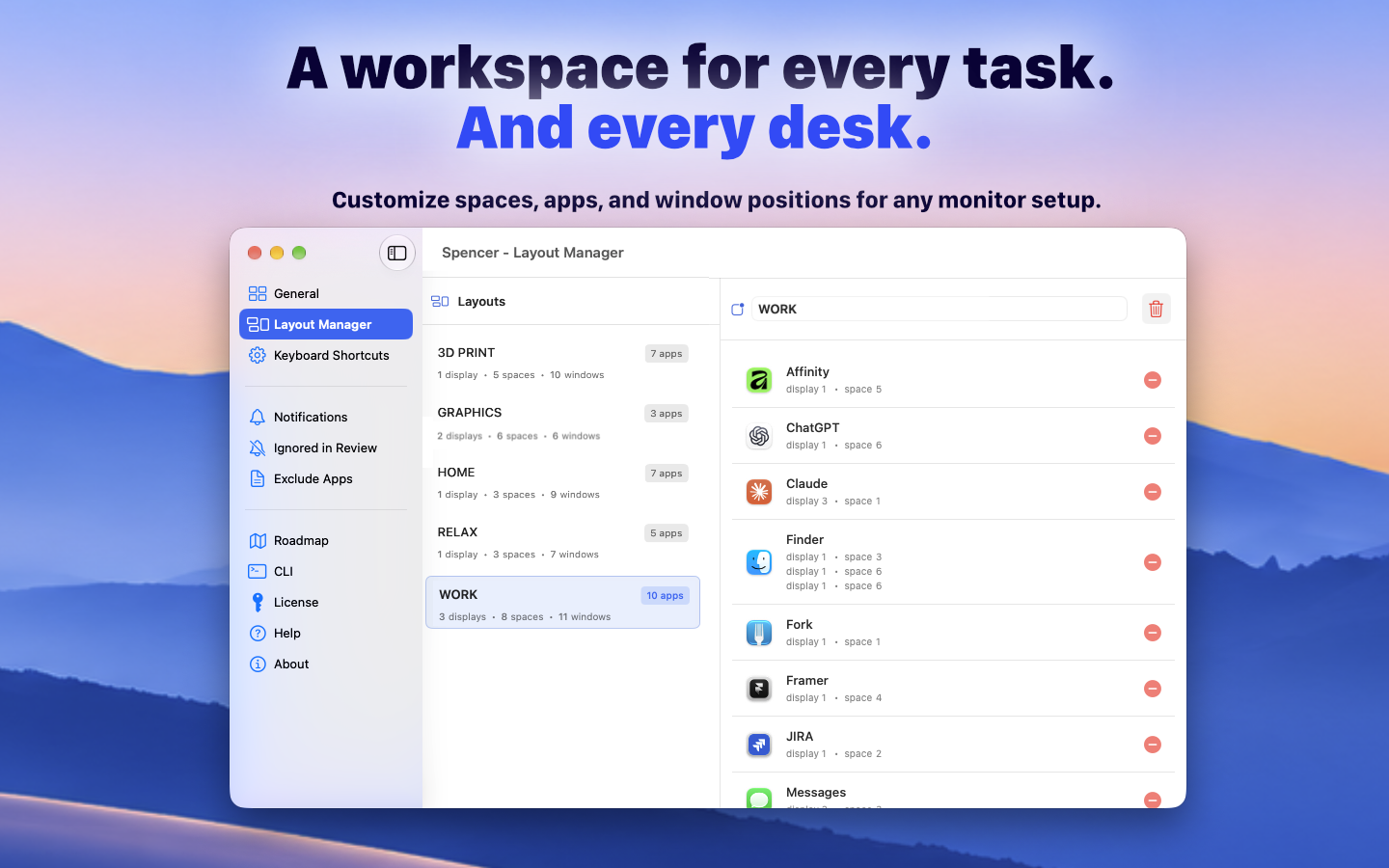
Spencer is a native Mac workspace management application that saves the complete arrangement of your application windows and virtual desktops so you can restore it later. Rather than treating every window as an independent item that must be manually positioned, Spencer captures how your applications are arranged across your Mac’s displays and Spaces.
Its main purpose is to make workspace switching predictable and convenient. You can organize your applications for different activities, save each arrangement as a profile, and restore the corresponding environment whenever you need it.
The application works with the standard macOS Mission Control environment and supports multiple virtual desktops, external monitors, Full Screen applications, and Split View layouts.
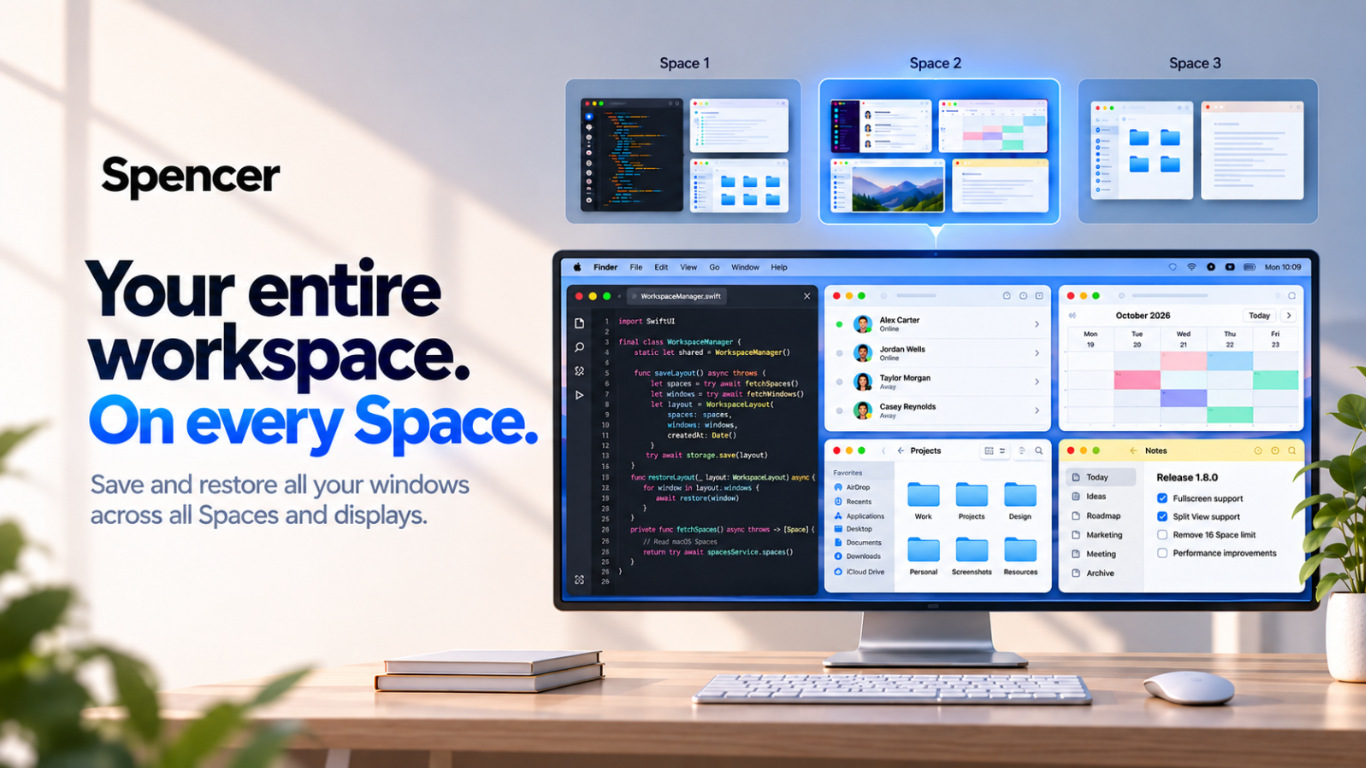
Here are some of the essential capabilities that define Spencer:
- Complete Workspace Snapshots: Save the size, position, display, and Space associated with your application windows.
- Native macOS Spaces Integration: Manage layouts across multiple virtual desktops without replacing the standard Mission Control system.
- Multi-Monitor Workspace Profiles: Maintain different arrangements for laptop-only and external-display configurations.
- Automatic Space Management: Create missing virtual desktops or remove extra ones to match the selected workspace profile.
- Application Management: Launch applications that are missing from a saved layout and hide applications that are not required.
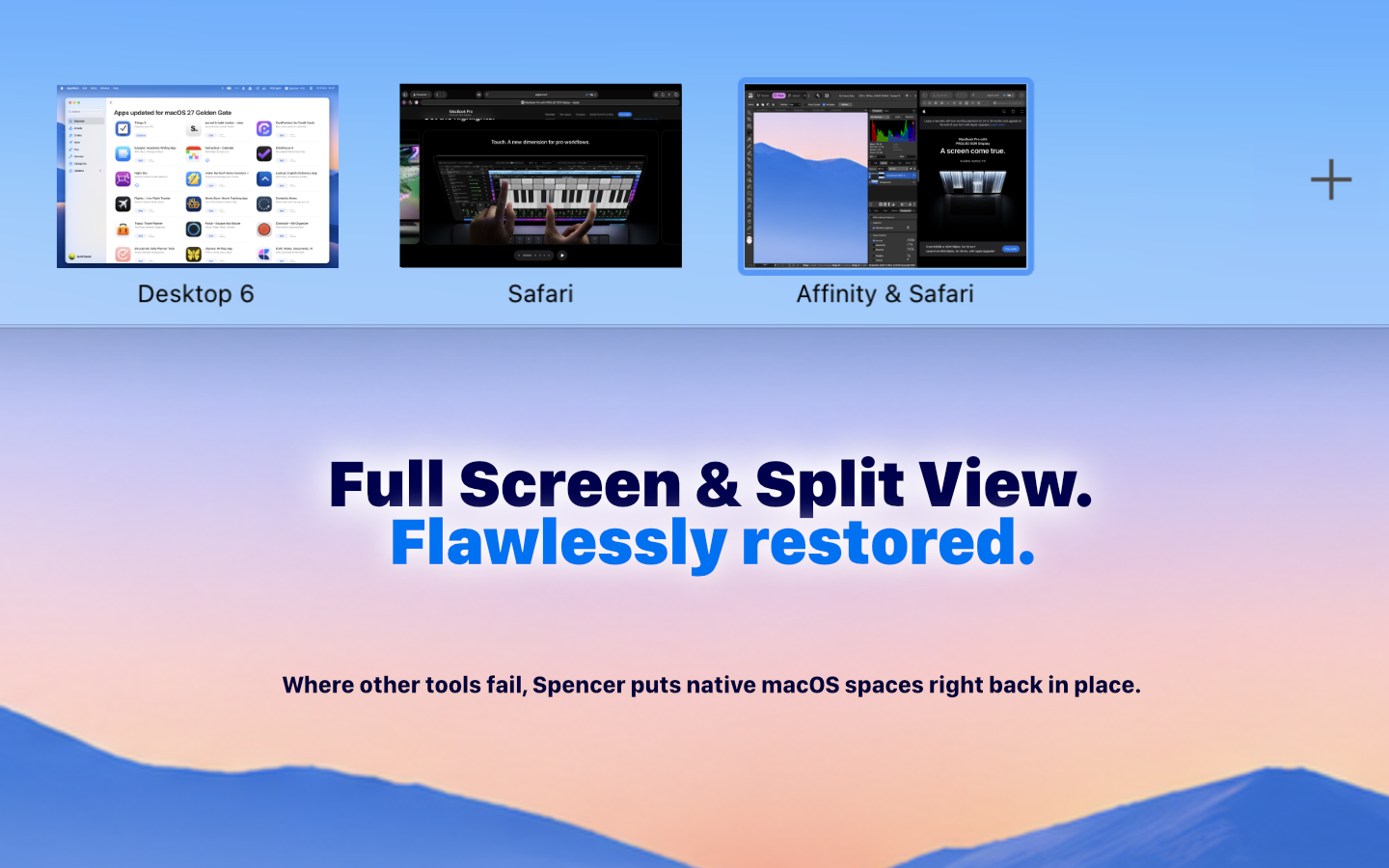
- Full Screen and Split View Restoration: Restore supported full-screen applications and side-by-side Split View arrangements.
- Keyboard Shortcut Controls: Perform workspace-aware window restoration, minimization, and hiding through a convenient shortcut.
- Local Workspace Storage: Keep workspace information on your Mac without requiring an online account or cloud synchronization.
Key Benefits
Spencer provides several practical benefits for users who want more control over their Mac desktop. The following advantages explain how its workspace management functions can support different working routines.
- Save Time on Window Arrangement: Restore stored window sizes and positions without repeatedly moving every application manually.
- Organize Multiple Virtual Desktops: Maintain different Spaces for writing, research, programming, communication, and other activities.
- Manage Different Display Configurations: Save dedicated profiles for MacBook-only use and external monitor workstations.
- Maintain Your Existing Work: Hide applications outside the active profile instead of closing them and potentially interrupting unfinished tasks.
- Restore Full Screen and Split View: Preserve native macOS window arrangements as part of a saved workspace.
- Keep the Desktop Focused: Hide applications that are not required for the current task or meeting.
- Simplify Application Startup: Launch saved applications that are not currently running.
- Organize Multiple Windows: Manage different windows belonging to the same application individually.
- Customize Your Layout: Use freeform window sizes and positions without being restricted to fixed grids.
- Keep Workspace Data Local: Store saved workspace information directly on your Mac without requiring cloud synchronization.
- Switch Between Activities: Maintain dedicated profiles for work, meetings, relaxation, and project-specific tasks.
- Reduce Repetitive Setup: Return to a familiar desktop arrangement after restarting your Mac or changing display configurations.
Practical Workspace Examples
Spencer can be useful in different working environments. Here are several examples of how saved profiles can simplify everyday Mac usage.
Professional Workstation
A professional who works with spreadsheets, email, browsers, communication tools, and documents can create a dedicated work profile. Each application can occupy its preferred display and Space, making it easier to return to the same organized environment every morning.
Software Development
Developers frequently use multiple windows from applications such as code editors, Terminal, browsers, and documentation tools. Spencer can distinguish between multiple windows belonging to the same application and restore them to their saved locations.
Online Meetings and Presentations
Preparing a Mac for screen sharing can involve closing or hiding unrelated windows and arranging presentation materials. A dedicated meeting profile can keep the necessary applications visible while hiding other applications from the desktop.
Creative Projects
Designers and content creators often work with several applications and reference windows simultaneously. Freeform window positioning makes it possible to preserve personalized arrangements without relying on predefined window grids.
Laptop and External Monitor Switching
Users who move between home, office, and travel environments can maintain separate configurations for different display setups. This reduces the need to reposition applications every time an external display is connected or disconnected.
Why Choose Spencer Instead of Other Mac Window Managers?
Traditional Mac window management applications often focus on arranging windows within the currently active screen. Window snapping tools such as Magnet and Rectangle are designed to place windows into predefined screen regions. While useful for basic positioning, this approach does not provide the same complete workspace snapshot and restoration capabilities described by Spencer.
Tiling managers such as AeroSpace and yabai offer another approach by organizing windows into structured layouts. However, users who prefer the traditional macOS desktop experience may not want to replace native window management behavior or work within rigid layout rules.
Spencer takes a different approach by focusing on complete workspace restoration. It remembers the relationship between windows, applications, displays, and native macOS Spaces.
Instead of simply moving a window into a grid, Spencer aims to bring back the entire environment you previously saved. It supports freeform arrangements, multiple displays, Full Screen applications, and Split View configurations.
Another important distinction is its application handling approach. Rather than requiring applications outside the current profile to be closed, Spencer can hide them while keeping them available in the Dock.
For Mac users who prefer the standard macOS Mission Control experience but need more control over their workspace arrangements, Spencer offers a practical alternative to conventional window snapping and tiling utilities.
Features
The following feature breakdown highlights the primary tools Spencer provides and explains how each function contributes to Mac workspace management.
- Native macOS Spaces Integration – Save and restore application arrangements across native macOS virtual desktops.
- Mission Control Support – Works directly with the macOS Mission Control environment.
- Multiple Spaces Management – Organizes windows across different virtual desktops instead of focusing only on the currently active Space.
- Dynamic Space Count – Automatically creates missing Spaces or removes extra Spaces to match a saved profile.
- Workspace Restoration – Returns saved windows to their designated virtual desktops.
- Multi-Display Workspace Management – Save and restore desktop layouts across connected monitors.
- Display-Specific Profiles – Maintain different workspace arrangements for different monitor configurations.
- External Monitor Support – Organize windows across multiple connected displays.
- MacBook-Only Profiles – Prepare a compact layout for single-screen use.
- Display Reconnection Support – Restore the saved arrangement when returning to a previously used display setup.
- Application and Window Management – Manage the applications and individual windows associated with each workspace.
- Automatic Application Launching – Open saved applications that are not currently running.
- Inactive Application Hiding – Hide applications that do not belong to the selected workspace without closing them.
- Multiple Windows per Application – Distinguish between individual windows belonging to applications such as Safari, Terminal, and Finder.
- Extra Window Minimizing – Minimize unorganized extra windows belonging to a saved application to the Dock.
- Application Visibility Control – Keep the desktop focused on the applications needed for the current activity.
- Full Screen and Split View Restoration – Preserve native macOS arrangements as part of the saved workspace.
- Full Screen Application Support – Restore applications saved in native Full Screen mode.
- Split View Support – Recreate saved side-by-side application arrangements.
- Split View Order – Restore Split View pairs in their saved order.
- Native Window Behavior – Work with macOS arrangements rather than requiring users to replace native Spaces.
- Freeform Window Positioning – Maintain personalized layouts based on individual application requirements.
- Custom Window Sizes – Save the dimensions of each organized window.
- Custom Window Positions – Remember the coordinates of saved windows.
- Overlapping Arrangements – Allow overlapping windows instead of enforcing rigid grid layouts.
- Flexible Workspace Design – Arrange applications according to personal preferences and task requirements.
- Workspace Profiles – Create separate desktop environments for different activities.
- Work Profile – Keep professional applications and project windows organized.
- Meetings Profile – Hide unrelated windows and retain the applications needed for presentations and calls.
- Relax Profile – Keep work applications hidden during personal time.
- Display-Specific Profiles – Use different profiles for laptop and multi-monitor configurations.
- Project-Based Organization – Create dedicated arrangements for different projects and workflows.
- Keyboard Shortcut Management – Use shortcut-based actions to maintain your saved layout.
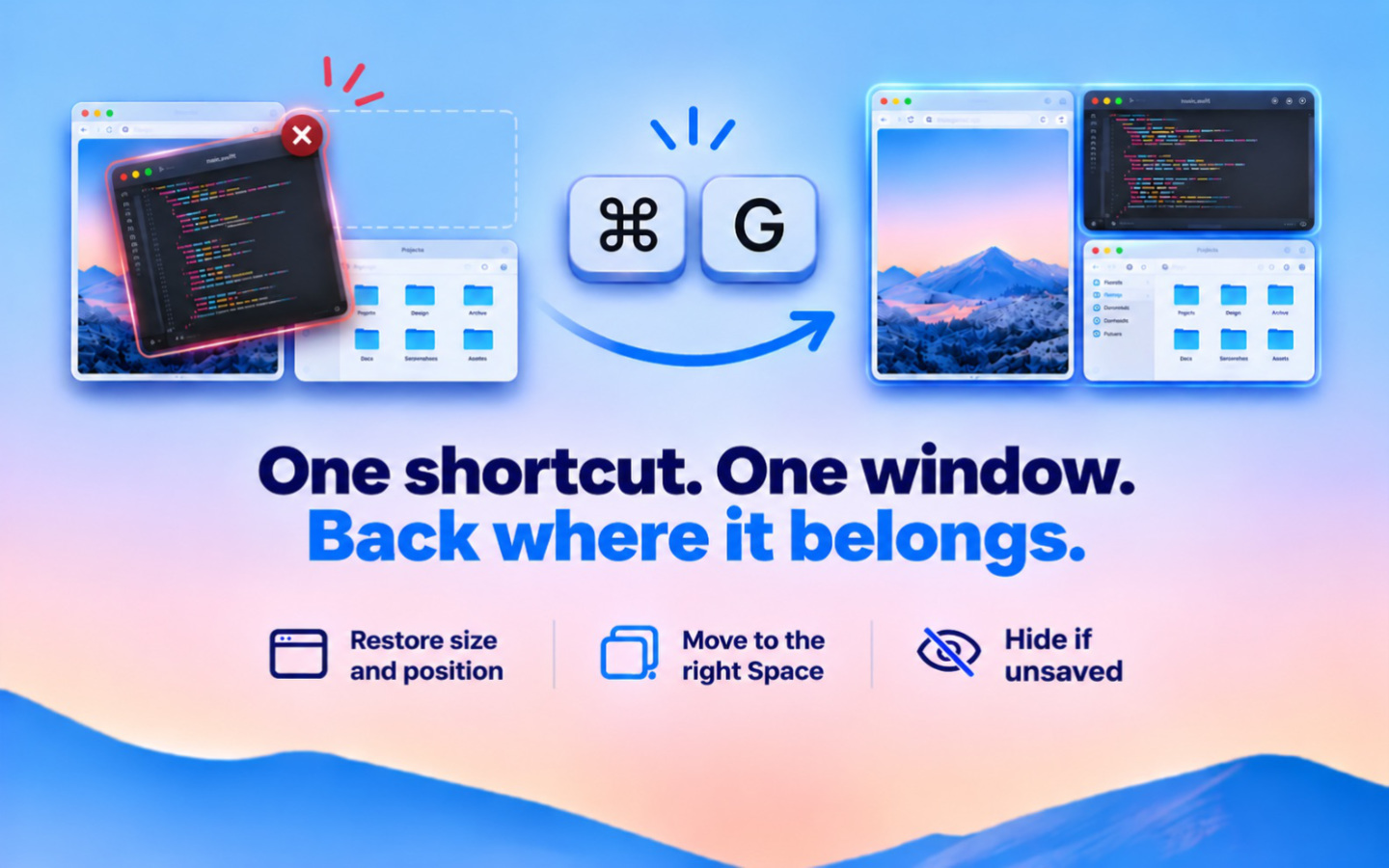
- Restore Action – Return a moved or resized window to its saved position and Space.
- Minimize Action – Minimize additional unorganized windows belonging to a saved application.
- Hide Action – Hide an application that does not belong to the active workspace.
- Custom Shortcut Workflow – Access supported workspace actions through configured keyboard shortcuts.
- Startup Workspace Restoration – Help return the desktop to an organized state after restarting your Mac.
- Launch Saved Applications – Open applications included in the selected workspace but not currently running.
- Hide Startup Clutter – Hide applications that open automatically but are not required by the saved profile.
- Restore Window Arrangements – Return saved windows to their designated positions and Spaces.
- Local-First Privacy – Keep workspace information stored on your computer.
- Local Workspace Storage – Save workspace configurations directly on your Mac.
- No Account Required – Use the software without creating an application account, according to the supplied product information.
- No Cloud Synchronization – Manage saved profiles without a cloud sync service.
- No Subscription Model – Spencer is described as having no recurring subscription.
- Optional Anonymous Analytics – Usage analytics are optional.
- No Screen Recording Permission Required – The supplied product information states that Spencer does not request Screen Recording access.
Requirements
Before installing Spencer, it is important to confirm that your Mac meets the necessary operating system and permission requirements. The following list summarizes the main requirements and compatibility considerations.
Minimum Requirements:
- Operating System: macOS 13 Ventura or a later compatible macOS version.
- Computer: A Mac capable of running the supported macOS version.
- Accessibility Permission: Required for Spencer’s window positioning and management functions.
- Automation Permission: Standard macOS Automation (AppleScript) authorization is required for supported application control.
- Internet Connection: May be needed to download the application, activate a purchased license, and access online assistance.
- Storage: Sufficient available storage for downloading and installing the application.
- Display Configuration: Compatible with single-display and multiple-display Mac setups.
- Virtual Desktops: Uses native macOS Spaces through Mission Control.
- Screen Recording: No Screen Recording permission is required.
Important Compatibility Notes:
- Stage Manager: Not currently supported. Stage Manager must be turned off while using Spencer.
- Full Screen: Supports native macOS Full Screen restoration.
- Split View: Supports native macOS Split View restoration.
- Window Managers: Compatible with Moom, Rectangle, and Magnet. Compatibility with AeroSpace and Yabai is not currently supported according to the developer’s compatibility information.
- Workspace Content: Spencer restores supported application windows and their positions, but does not independently reopen closed browser tabs, individual files, or projects.
Downloads
Give Spencer a Test Run and See How Easily Your Mac Workspace Can Be Organized!
You do not have to commit to a purchase before understanding how Spencer fits into your everyday workflow. The application offers a 7-day free trial, giving you an opportunity to test its workspace management capabilities and evaluate its usefulness with your own applications and displays.
or
Buy now, the price start from:
Thank you for reading Spencer Mac App review, and enjoy the discount coupon. If you notice any issues with Spencer Mac App discount coupon, deal, or giveaway—such as an expired offer, broken link, or sold‑out promotion—please let us know while the deal is still available.