Giveaway – SideNote Pro: Free License Key | BYOK AI Assistant – for Windows

A Way to Work With AI on Windows. Get a Full version of SideNote Pro with a License Key For Free!
Free Full Version!
BUY NOW
SideNote Pro is available for $49.00. But, you can now get a full version of SideNote Pro with a license key for free through the Giveaway tab below. This offer is available for a limited time!

Abelssoft Easy AI BEST OFFER
75% Off – Ashampoo AI Assistant | AI Assistant for Easy Creation, Editing and Translation of Texts BEST OFFER

Krisp AI Meeting Assistant BEST OFFER

Knowledgie Lifetime Deal BEST OFFER

AIChatSuite Lifetime Deal BEST OFFER

AISocials Lifetime Deal BEST OFFER

Vovsoft AI Requester GIVEAWAY

UPDF Pro: Lifetime Deal BEST OFFER

MyPic AI BEST OFFER

ShadowGit BEST OFFER

HitPaw Online BEST OFFER

Ventress BEST OFFER

BeforeSunset AI BEST OFFER
SideNote Pro Giveaway
Available now: Free License Key For a Limited Time!

To access the giveaway, kindly provide your email address. Please refrain from closing this page after signing in to receive instructions on how to access the offer at no cost.

NOTES:
– All prices shown here are in listed USD (United States Dollar).
– Such promotional programs are subject to change without notice, from time to time in our sole discretion.
– Data may vary based on different systems or computers.
SideNote Pro Review at a Glance
Most people who work on a computer all day know this pattern well: you are writing a report, coding a feature, or answering a client email, and a question comes up that only an AI can answer quickly. So you open a browser tab, copy the relevant text, paste it into a chat window, wait for a reply, then copy that answer back into your original document. By the time you are done, you have lost the sentence you were writing, the line you were debugging, or the thought you were about to finish. This constant back-and-forth is what SideNote Pro was built to remove.
What is SideNote Pro
SideNote Pro is a docked BYOK AI assistant built specifically for Windows 11. Rather than functioning as a general AI chatbot, it is designed as the Windows-side workflow layer that sits around whichever AI provider or local model you choose to connect. It is a native application built with WinUI 3 on the Windows App SDK, running on .NET and shipped self-contained, which means it behaves like a proper piece of Windows software rather than a web page wrapped inside a desktop shell.
At its core, SideNote Pro solves one specific problem: the cost of context switching. Every time you leave your current application to ask an AI a question, you lose momentum, you lose the exact spot you were working in, and you often lose small details that mattered. SideNote Pro answers that problem by never asking you to leave. It comes to you, answers, and steps back out of the way.
The application works across standard Windows 11 editions, including Home, Pro, Enterprise, and Education, though on managed business or school devices, administrator policies may restrict installation or certain Windows features. Registration for automatic startup uses the per-user Windows Run key, which means no administrator rights are required to install or run it, and the optional sign-in launch is silent, showing only the tray icon or the drawer leash without ever pulling focus away from whatever you are doing.
Key Benefits
Below is a breakdown of the practical advantages SideNote Pro brings to your daily workflow, regardless of whether you spend your day writing, coding, researching, or managing client work.
- No forced AI subscription: since it is BYOK, you only pay for the AI usage you actually consume, on the provider of your choice, instead of a bundled plan priced for people who use far more or far less than you do.
- Minimal context loss: the dock, float, and drawer-leash behavior means your place in your original document, browser, or code editor is never disturbed while you get an answer.
- Provider freedom: connect OpenAI, a local Ollama or LM Studio server, or any other OpenAI-compatible endpoint, and change your mind later without losing any application functionality.
- Faster repetitive edits: inline commands like /fix and /formal remove the chat window entirely for small, frequent rewrite tasks, replacing text exactly where you typed it.
- Works with what you already have open: selected-text actions and screenshot capture mean you rarely need to retype or re-describe something the AI could just read directly from your screen.
- Local-first data handling: your settings, history, and folder indexes stay on your machine, and API keys are protected with Windows DPAPI rather than stored in plain text.
- One purchase, no recurring software fee: the license is bought once, covering every feature with no paid tiers layered on top later.
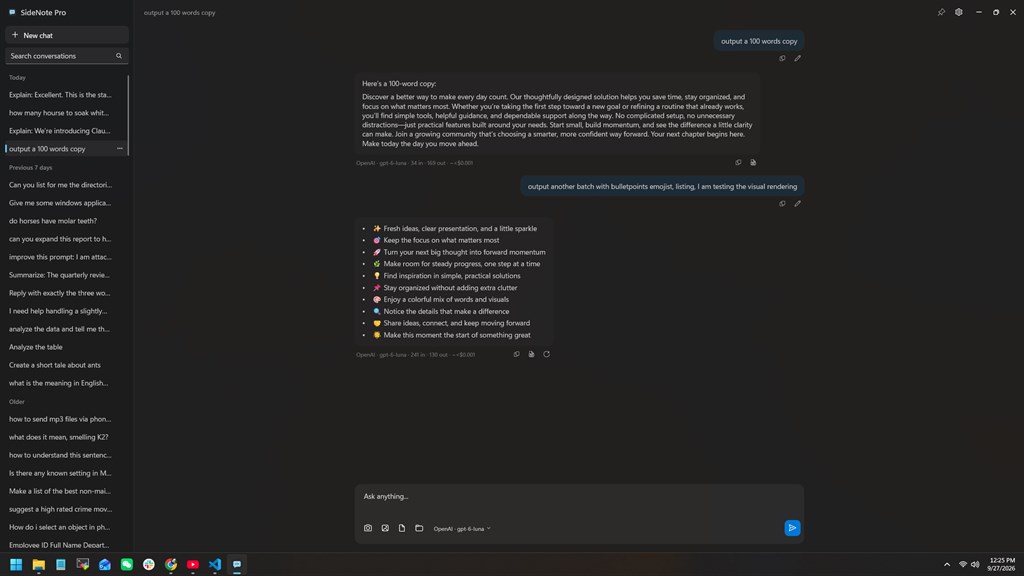
SideNote Pro is a native Windows 11 application that lives at the edge of your screen instead of taking over the center of it. It can float, snap to the right edge of your display, stay above every other window, or shrink into a small 44 by 68 pixel leash that waits quietly until you need it again. A single keyboard shortcut, Ctrl+Shift+Space by default, brings it forward from anywhere in Windows, and pressing Esc sends it back to the edge without losing your conversation thread, your scroll position, or the size you left it at.
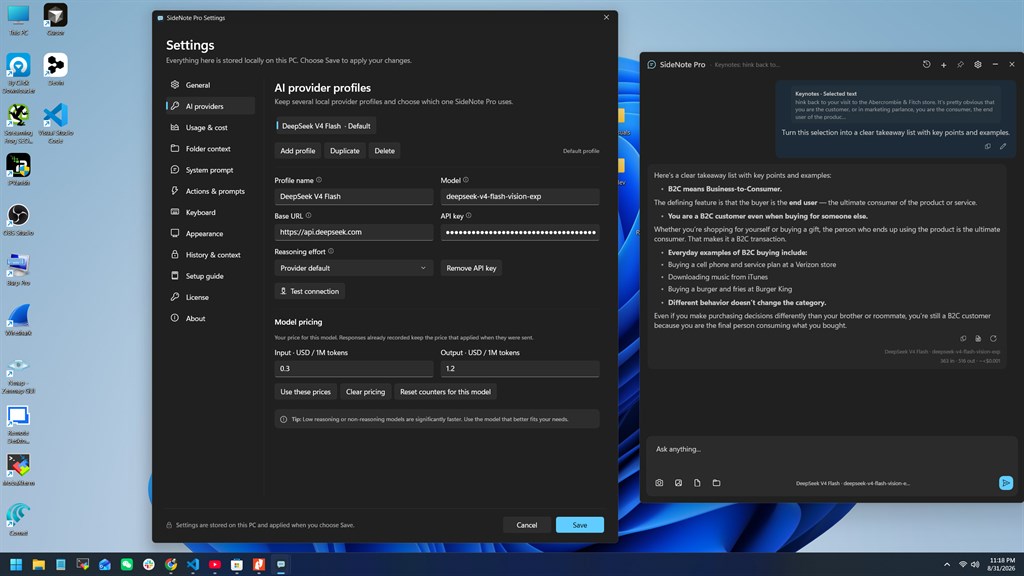
What makes SideNote Pro different from a typical AI chat application is the Bring Your Own Key (BYOK) model behind it. There is no bundled AI subscription hiding inside the price. Instead, you connect your own API credentials from a provider such as OpenAI, or you point it at a local model running through Ollama or LM Studio, or you configure any other OpenAI-compatible endpoint by hand. Requests travel straight from your machine to the endpoint you chose. The people who built SideNote Pro do not see your prompts, and they do not relay them anywhere. This single design choice means you are never paying twice for AI access, and you always control which model answers your question.
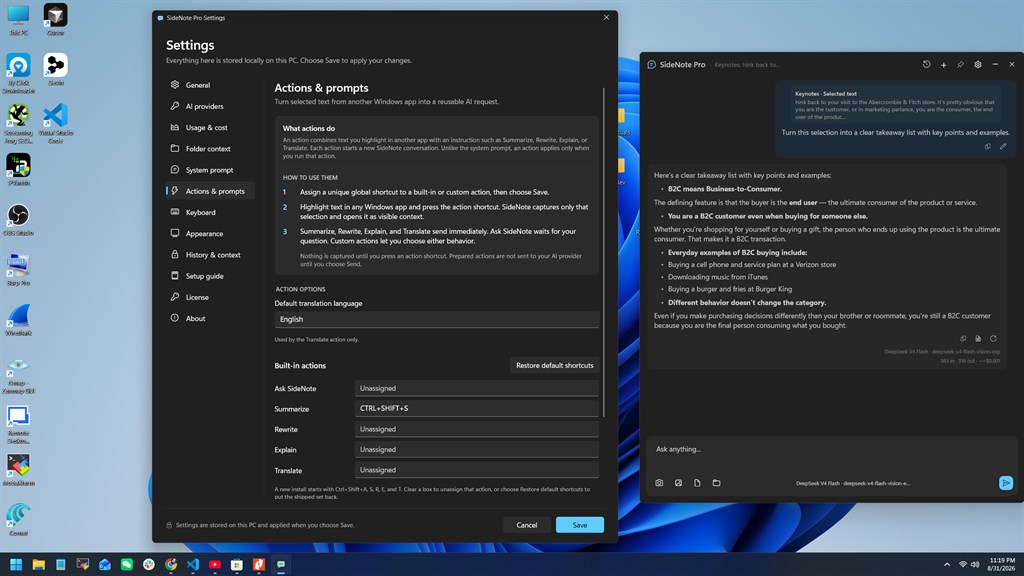
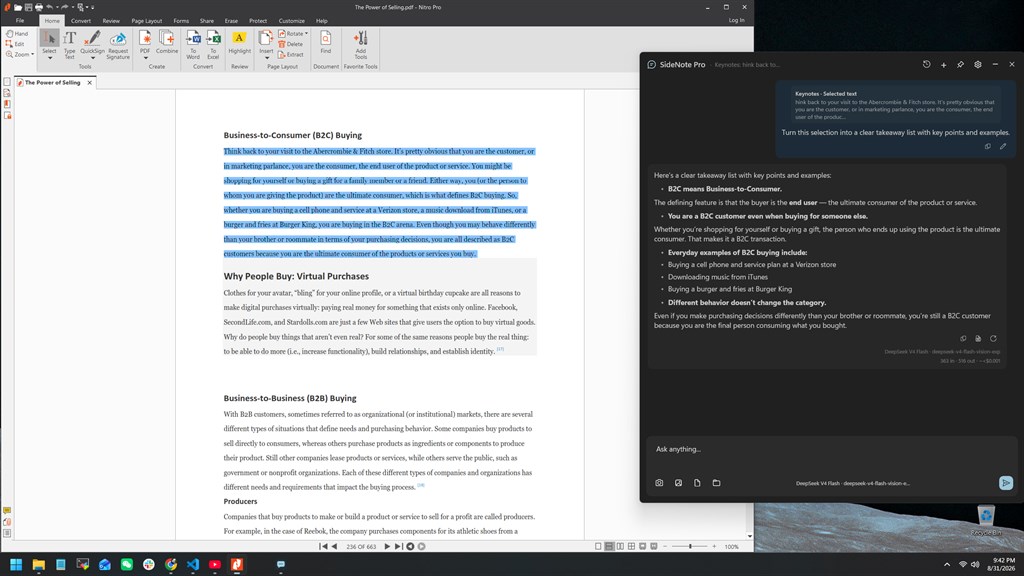
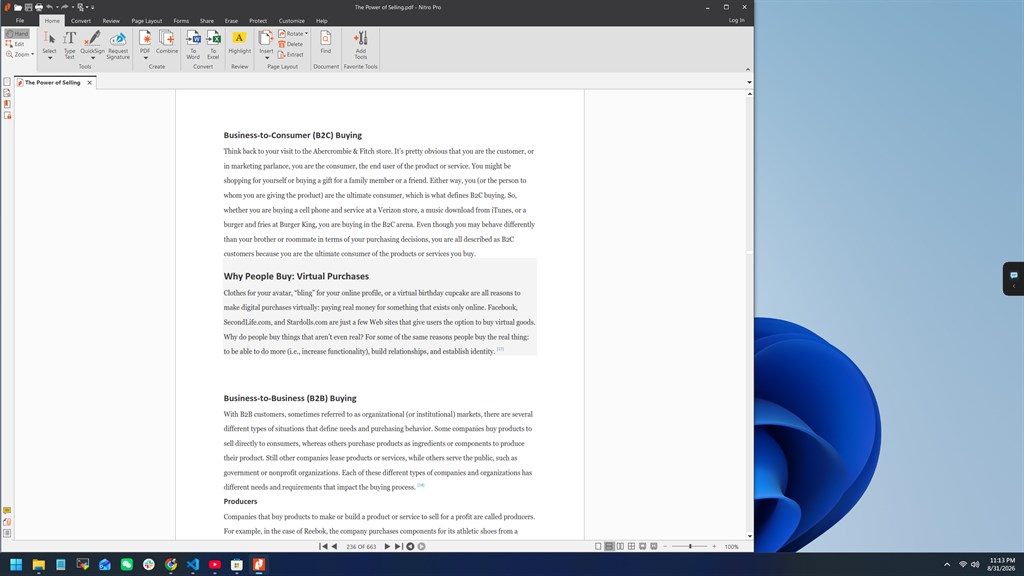
The tool is not limited to typed questions either. You can attach PDF, DOCX, TXT, and Markdown files and ask questions about their contents, with the text pulled out locally on your own machine before anything is sent anywhere. You can capture a screenshot of a region, a window, a full screen, or an entire virtual desktop, paste an image straight from the clipboard, or drag one in directly. You can point SideNote Pro at a local folder full of specifications, research notes, or a codebase you did not write, and ask questions about what is inside it, complete with named sources you can open afterward. And for text you have already selected in any Windows application, a shortcut can summarize it, rewrite it, explain it, or translate it on the spot, with your own custom actions layered on top if the built-in ones are not enough.
For anyone whose daily work involves repetitive text edits, SideNote Pro adds a feature few competitors offer in this form: inline commands. Type a short trigger such as /fix, /en, /short, or /formal directly into a text field inside any other Windows application, followed by the text itself, then press Tab. SideNote Pro sends that instruction to your configured AI provider and types the corrected or rewritten result back into the exact spot you were typing in, with no chat window opening and nothing to copy or paste. You can define your own commands and even set a writing context that applies across all of them, and every command stays switched off until you turn it on yourself.
Who benefits most from this tool?
Writers, editors, and content creators who move between a document and research constantly will find the folder indexing and document attachment features cut out repeated searching. Developers debugging from logs and code can keep an assistant docked beside their editor rather than alt-tabbing to a browser. Customer support staff, translators, and anyone drafting repetitive emails will get immediate value from the inline rewrite commands. Students and researchers working through long PDFs and specification documents get sourced answers instead of having to re-read entire files. And privacy-conscious professionals who need to avoid sending sensitive text to a third-party cloud service can point SideNote Pro at a local model instead, keeping every request on their own hardware.
SideNote Pro is a one-time purchase, not a subscription. You pay once for the Windows application itself, and every feature is included with no tiers to move between. What you do not get bundled in is AI provider usage: tokens, credits, or inference of any kind are billed separately by whichever provider you connect, under that provider’s own terms. This separation is exactly why the tool can be sold without a recurring fee, and why the price you see reflects the software workflow around the AI, not the AI itself.
Key Features
Below is a comprehensive list of the key features that make SideNote Pro a genuinely useful addition to how you work on Windows every day, organized by the part of the workflow each one supports.
- Global summon shortcut: press Ctrl+Shift+Space from any Windows application to bring the assistant forward instantly, with no window to search for and no tab to reload.
- Customizable key combination: change the shortcut in Settings under Keyboard, using modifiers with Space, a letter, or a number, such as Alt+Space.
- Conflict handling: if Windows cannot register a chosen combination because another application already holds it, SideNote Pro notifies you and restores your previous working shortcut.
- Right-edge docking and drawer leash: anchor the panel to the edge of your current display and retract it into a small 44 by 68 pixel leash when you step away from it.
- Position memory: clicking the leash restores the exact size and vertical position you left the panel at, so nothing needs re-arranging.
- Display change resilience: the leash re-docks itself automatically when Windows reports a resolution change, a work-area change, a DPI change, or a display disconnect.
- Flexible window modes: use SideNote Pro as an ordinary floating window, maximize it, or keep it docked, depending on what suits the task in front of you.
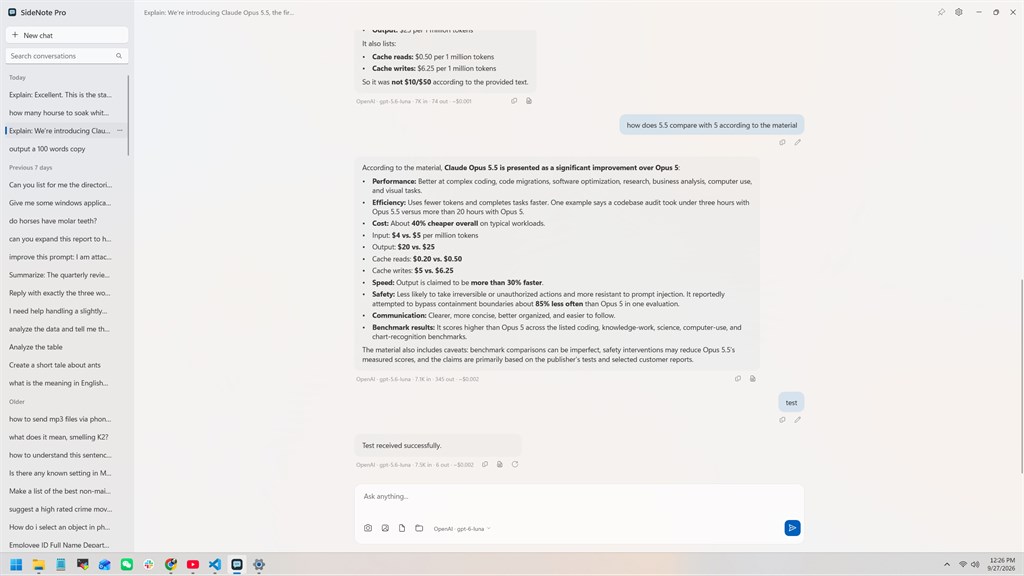
- Wide layout sidebar: widen the window past 1,200 logical pixels to keep your conversation history visible in a sidebar while answers keep a comfortable reading width.
- Independent always-on-top: the assistant window can stay above other windows on its own, and the drawer leash can stay on top independently without forcing the full window to be topmost.
- Bring Your Own Key AI connections: configure OpenAI with your own secret key, or connect a local Ollama or LM Studio endpoint so inference runs entirely on your own hardware.
- Any compatible endpoint: set up another OpenAI-compatible service manually, keeping in mind that compatibility varies between services and is worth checking beforehand.
- Per-profile model selection: choose the specific model for each provider profile, plus an optional reasoning effort level where your chosen model supports one.
- Document input: attach PDF, DOCX, TXT, and Markdown files directly into a conversation and ask questions about their content.
- Local text extraction: text is pulled out of the document on your own machine, and the original file itself is never uploaded anywhere.
- Screenshots and image capture: capture a region, a specific window, a full screen, or the entire virtual desktop, or paste directly from the clipboard.
- Drag and drop support: drag an image file straight into the conversation window instead of capturing a new screenshot each time.
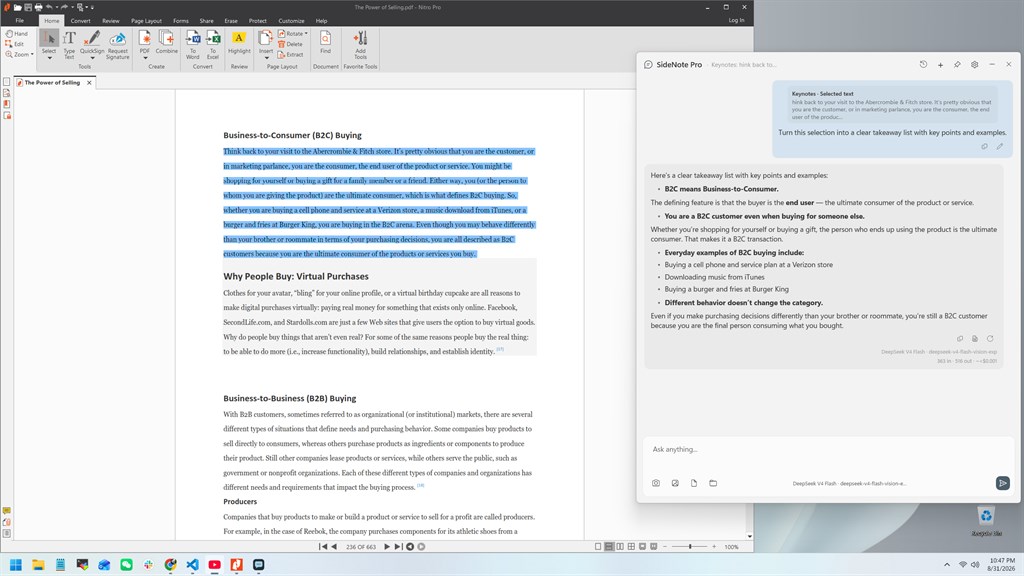
- Local folder context: point SideNote Pro at a folder you choose and ask questions about the files inside it.
- Lexical search, not crawling: nothing is discovered or watched in the background, and indexing happens locally with no AI provider contacted and no embeddings or vector database involved.
- Attached sources: every answer keeps a list naming the files and PDF pages it drew on, so you can open and verify the original material yourself.
- Selected-text actions: summarize, rewrite, explain, or translate a text selection in any Windows application using a shortcut.
- Custom actions: define your own selected-text actions beyond the built-in set to match tasks you repeat often.
- Inline commands: type a short trigger such as /fix, /en, /short, or /formal followed by your text in any Windows application, then press Tab to have the AI’s version typed back in place.
- Custom commands and writing context: add your own commands and set a writing context that applies to all of them, with every command switched off until you turn it on.
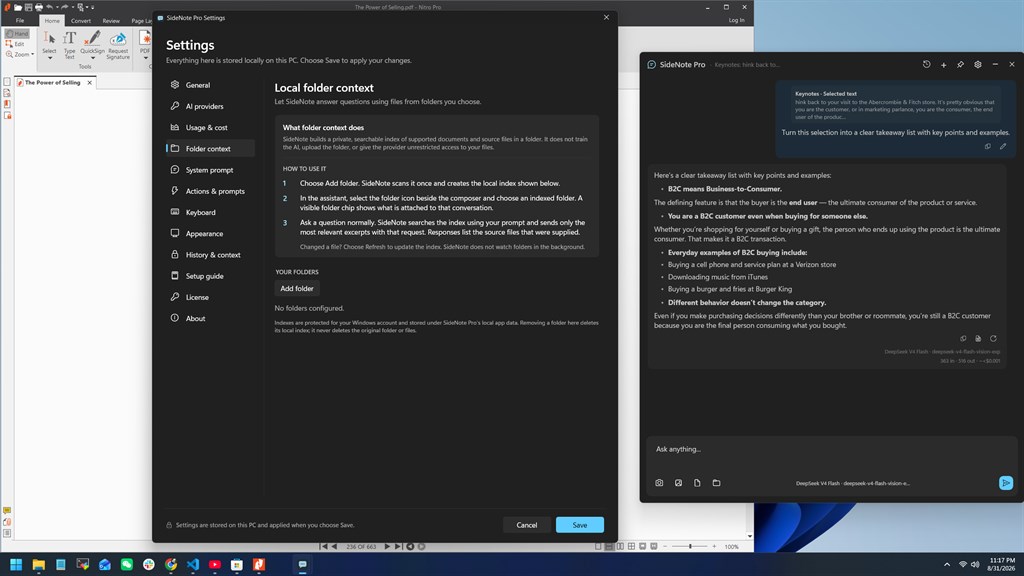
- Local conversation history: threads, search, pins, and retention settings are stored entirely on your device, with no cloud synchronization involved.
- Markdown and PDF export: export an entire thread as Markdown, or export a single assistant response as a formatted A4 PDF rendered locally.
- Usage and cost tracking: see token counts and local cost estimates for the AI usage you generate.
- Daily ledger and limit: track a running daily ledger of usage and optionally set a daily limit to keep costs predictable.
- Response rendering and controls: answers render as Markdown with copyable code blocks, and you can stop, continue, regenerate, or edit a response as needed.
Requirements
Before installing SideNote Pro, check the following requirements to make sure it runs correctly on your machine.
- Operating system: Windows 11 x64, including Home, Pro, Enterprise, and Education editions.
- Administrator rights: not required for installation or startup registration, since it uses the per-user Windows Run key.
- Managed devices: on business or school machines, administrator policies may restrict installation or certain Windows features, so check with your IT administrator first if you are on a managed device.
- AI provider account or local model: an OpenAI API key, a local Ollama or LM Studio installation, or another OpenAI-compatible endpoint, purchased or set up separately from SideNote Pro itself.
- Display setup: works across single and multi-monitor setups, with per-monitor DPI awareness and support for negative virtual-desktop positions.
Downloads
See how SideNote Pro fits into your own workflow before deciding on a purchase. Get the trial edition for free to test document attachments, inline commands, and folder indexing directly on your own machine by clicking the button below.
or
Buy now, the price start from:
Thank you for reading SideNote Pro review, and enjoy the discount coupon. If you notice any issues with SideNote Pro discount coupon, deal, or giveaway—such as an expired offer, broken link, or sold‑out promotion—please let us know while the deal is still available.