Giveaway #2 – Turbo PC Optimizer: Free License Key | PC Booster Application – for Windows

Get your speed back today by grabbing your copy of Turbo PC Optimizer for FREE while the limited-time launch giveaway is still active.
Free Full Version!
BUY NOW
Turbo PC Optimizer by SoftOrbits normally costs $49.99, but for a limited time, you can get the full version for free with a license key available in the Giveaway tab below. Claim your free copy now before the offer expires.

GearUp VIP BEST OFFER
PC Game Booster 8 Pro: 1 Year License, 1 PC BEST SELLER

Smart Game Booster Pro: BEST OFFER
Ashampoo WinOptimizer Pro 29 BEST SELLER
Wise Care 365 PRO: Lifetime Upgrade License, 3 PCs BEST SELLER
System Mechanic Ultimate Defense BEST SELLER

IObit Advanced SystemCare 20 PRO with Super Valur Pack: 6 Items included! BEST SELLER
Kersih Doctor: 3 PCs BEST SELLER
PC Fresh 2026: Full Version BEST SELLER

iolo System Mechanic Pro BEST SELLER
PC Services Optimizer 4 PRO: Lifetime License BEST SELLER
PC Startup Master 4 PRO BEST OFFER
MyCleanPC BEST OFFER
O&O Defrag 31 Professional Edition: Perpetual License BEST SELLER

Glary Utilities Pro BEST SELLER
Nero TuneItUp PRO GIVEAWAY

WashAndGo BEST SELLER
SysTweak Advanced System Optimizer BEST SELLER

Auslogics Essential Tools: 3-PC 1-year License BEST OFFER
Systweak Advanced PC Cleanup BEST OFFER

Systweak Advanced System Protector BEST OFFER
Auslogics BoostSpeed 14 Pro BEST SELLER

Total PC Care: 1-year Subscription BEST OFFER

4-Organizer Ultra: Forever License BEST OFFER
SoftOrbits Turbo PC Optimizer Key Giveaway
Available now: Free License Key for a Limited Time!
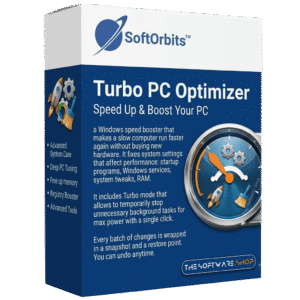
To access the giveaway, kindly provide your email address. Please refrain from closing this page after signing in to receive instructions on how to access the offer at no cost.

NOTES:
– All prices shown here are in listed USD (United States Dollar).
– Such promotional programs are subject to change without notice, from time to time in our sole discretion.
– Data may vary based on different systems or computers.
Turbo PC Optimizer Review at a Glance
A two-year-old laptop that boots slow, apps that lag for no clear reason, and a fan that spins up even when you are just browsing the web, this is the everyday frustration that pushes people to consider buying new hardware they do not actually need. The real problem usually is not age, it is accumulation: background services piling up, a startup list that keeps growing with every install, and Windows settings left at generic defaults that were never tuned for your machine. Most people respond by opening Task Manager, turning off a few icons, and finding the computer just as slow the next day, because the icons they can see are rarely where the real cost is hiding.
Turbo PC Optimizer by SoftOrbits is a Windows performance utility built to address that exact gap.

What Is Turbo PC Optimizer
Turbo PC Optimizer is a Windows PC booster application designed to speed up a slow computer by managing services, startup entries, disk usage, and system memory, with every single change made safe and fully reversible through built-in snapshots. It runs on both Windows 11 and Windows 10 (64-bit) and is developed by SoftOrbits, a company that has been building desktop utilities since 2006.
Rather than functioning as a disk cleaner that just removes temp files and cached data, SoftOrbits Turbo PC Optimizer targets the deeper causes of a sluggish system. It disables unused background services that were never providing you value, trims a bloated startup list one item at a time, applies a curated set of registry-level speed tweaks for Windows, Explorer, and system apps, and frees memory that idle applications have been holding onto. A dedicated Turbo mode and Game Boost mode give you an instant, one-click way to redirect all available resources toward the task or game in front of you, then revert everything back the moment you are done.
Key Benefits
Below is a rundown of the practical advantages that make this software worth adding to any Windows toolkit, from everyday responsiveness gains to measurable performance improvements before demanding tasks.
- Faster boot times – trimming startup items and disabling unnecessary services reduces the time between pressing the power button and having a usable desktop.
- Freed-up RAM on demand – the smart memory optimizer unloads idle processes automatically, which matters most on 8GB machines running a browser, chat apps, and AI tools at once.
- Instant gaming performance – Game Boost mode reclaims GPU priority and system resources without buying new hardware.
- Safer optimization – a one-click restore point behind every change means nothing is permanent unless you want it to be.
- Less guesswork – every service, startup app, and tweak comes with a plain-language explanation instead of a mystery score.
- No added background load – the application does not run at Windows startup by default, so it never becomes part of the slowdown problem itself.
- More usable disk space – the built-in disk analyzer reads the NTFS file table directly, so it identifies large folders in seconds instead of minutes.

Instead of scanning for junk files and flashing a generic score like a typical PC cleaner, it works on the components that actually determine how fast a system feels: services, startup programs, memory allocation, and a set of proven registry-level speed tweaks. It maps out what is running, tells you in plain language what each item does, and lets you decide what to stop, all while keeping a snapshot of the previous state so every change can be reversed instantly. This is the difference between a tool that just looks like it is helping and one that changes settings you can measure in boot time and app-launch speed.
The benefits for a potential buyer come down to control paired with safety. Users get a faster boot sequence because fewer unnecessary programs load at startup, freed-up RAM because idle background processes stop hoarding memory your active apps need, and a one-click Turbo mode that suspends everything you are not using right before a demanding task like gaming, video rendering, or file exporting. Because every action is logged as a restore point, there is no fear of the “one wrong toggle breaks Windows” scenario that keeps most non-technical users from ever touching their system settings. Genuinely risky adjustments, such as disabling UAC, are flagged and kept out of the automatic preset so they only happen if the user deliberately chooses them.
Why choose SoftOrbits Turbo PC Optimizer over a typical cleaner or a free registry scrubber? Because deleting temporary files rarely produces a noticeable speed difference, while stopping unused services, trimming startup load, freeing memory, and pausing background processes genuinely do, since these actions release resources your applications were actively waiting on. Turbo PC Optimizer is built entirely around that principle, and it does not stay running in the background eating the resources it promised to free once you close it, unlike many security suites and optimizers that quietly load on every boot.
Who benefits from this software spans a wide range of Windows users. Everyday users with an aging laptop that has slowed down over the years get a gentle, reversible way to restore responsiveness without a full reinstall. Gamers get a dedicated switch that frees CPU and RAM before a session so background updaters and cloud-sync clients stop stealing frames mid-match. Power users, freelancers, and small-office IT staff managing an older machine they cannot afford to upgrade get granular, item-by-item control over every service, startup entry, and speed tweak, something Task Manager alone was never built to provide.
Key Features

Below is a comprehensive list of the key features that make the software a valuable addition to your needs:
- One Button Boost to the Max – a single click suspends background junk, frees RAM, and redirects every available resource to your current task, with a second click reverting everything cleanly.
- Instant FPS for games – releases GPU and CPU headroom the instant Turbo mode is activated.
- Faster renders and exports – frees resources that video, photo, and audio software need during heavy processing.
- More free RAM – idle background apps are unloaded from memory automatically.
- Snappier multitasking – fewer competing processes means smoother switching between open programs.
- One-click on and off toggle – switching back to normal mode takes the same single click as activating Turbo.
- Services and Startup Manager – shows every service and startup item that actually launches with Windows, alongside a plain-language note on what each one does.
- Safe recommendations – flags freeloading services and apps that are safe to disable for a faster boot.
- Automatic disabling – stops and prevents chosen unnecessary items from auto-launching again.
- Smart Speed Tweaks – applies a curated set of proven Windows tuning changes for a snappier, more responsive system.
- UAC nag prompt control – reduces interruption from repeated permission prompts.
- Built-in ad blocking – disables Windows’ own advertising features inside the interface.
- Ultimate Performance Power Plan – unlocks the hidden high-performance power profile inside Windows, most noticeable on laptops.
- Laptop-specific gains – counters the power-saving defaults that throttle performance on battery-focused devices.
- Smart RAM Optimizer – frees memory automatically with no technical setup required.
- Idle process unloading – targets applications sitting in memory without being actively used.
- 8GB-machine relief – particularly useful when a browser and a few apps already consume all available memory.
- Disk Space Analyzer – shows exactly what is filling up your hard drive at a glance.
- NTFS file table reading – retrieves folder sizes in seconds instead of walking through directories manually.
- Sortable donut chart view – visually ranks the biggest space-consuming folders for quick cleanup decisions.
- Registry Speed Tweaks – a one-time collection of settings for System, Windows Explorer, and system apps, not a generic registry cleaner.
- Reversible toggles – every tweak applied can be turned off again at any time.
- Detailed explanations – each tweak includes a description so you can decide if you actually need it.
- Privacy and Tracking Tweaks – turns off the parts of Windows built to monitor user activity.
- DiagTrack telemetry disable – stops Windows diagnostic data collection from running in the background.
- Windows Recall timeline control – disables the Recall feature unless you specifically choose to keep it active.
- Game Boost Mode – one dedicated switch reshapes Windows for gaming, then reverts cleanly when the session ends.
- HAGS and GPU priority – enables hardware-accelerated GPU scheduling and gives the foreground game higher GPU priority.
- Windows Game Mode – focuses system resources on the game currently running.
- Fullscreen Optimizations disabled – removes an overhead layer that can interfere with frame rates.
- Game Bar overhead cleared – stops background Game Bar processes from competing for resources.
- Network throttling removed – lowers latency for a smoother online gaming experience.
- One-click revert – returns every gaming tweak to its original state instantly.
Requirements
Before installing, it helps to confirm the software will run smoothly on your setup, so here is what your system needs to meet.
- Operating system: Windows 11 or Windows 10 (64-bit only)
- Processor: any modern Intel or AMD CPU capable of running Windows 10/11
- Memory: minimum 4GB RAM, 8GB or more recommended for full benefit from the RAM optimizer
- Storage: sufficient free disk space for installation and snapshot data
- Administrator access: required to modify services, startup entries, and registry settings
- Internet connection: needed for initial download and license activation
Downloads
Explore how SoftOrbtis Turbo PC Optimizer works according to your needs by testing it firsthand before committing to a purchase. Download the free trial edition to run a full system scan, review the recommendations, and try the Turbo mode and Game Boost mode risk-free, with the first 30 days unlocking every feature so you can judge the real difference in boot time and app responsiveness for yourself.
or
Buy now, the price start from:
Thank you for reading SoftOrbits Turbo PC Optimizer review, and enjoy the discount coupon. If you notice any issues with the Turbo PC Optimizer discount coupon, deal, or giveaway—such as an expired offer, broken link, or sold‑out promotion—please let us know while the deal is still available.