

Giveaway – Corrupted SSD Recovery Tool: Free License Key | SSD Data Recovery Software | Unformatted and Corrupted NVMe, SATA and USB Drives – for Windows

Get your files off a RAW or “format this disk” SSD, and learn what the drive can still return before you wait for a scan. Get a full version of SoftOrbits Corrupted SSD Recovery Tool with a license key for FREE and pay only when your files open in the preview!
Free Full Version!
BUY NOW
Corrupted SSD Recovery Tool starts from $19.99. For a limited time, you can get a full version of SoftOrbits Corrupted SSD Recovery Tool with a License Key for free through the Giveaway tab below, so use it before the offer ends.

Wise Data Recovery Pro: 1-Year License, 1 PCs BEST OFFER
Magic Data Recovery Pro BEST OFFER
iTop Data Recovery Pro BEST OFFER
MiniTool Power Data Recovery BEST SELLER

EaseUS Data Recovery Wizard Professional GIVEAWAY

RecoverXData PRO: Lifetime License BEST OFFER

Systweak Advanced Disk Recovery BEST OFFER
Stellar Data Recovery BEST SELLER
Tenorshare 4DDiG - Windows Data Recovery BEST OFFER

Hasleo Data Recovery Professional EXCLUSIVE
SoftOrbits Corrupted SSD Recovery Tool Free Key Giveaway
Available now: Free License Key for a Limited Time!
To access the giveaway, kindly provide your email address. Please refrain from closing this page after signing in to receive instructions on how to access the offer at no cost.
NOTES:
– All prices shown here are in listed USD (United States Dollar).
– Such promotional programs are subject to change without notice, from time to time in our sole discretion.
– Data may vary based on different systems or computers.
SoftOrbits Corrupted SSD Recovery Tool Review at a Glance
An SSD that suddenly opens as RAW, asks Windows to format it, or loses its whole folder tree after a crash or power cut is a stressful problem. Your photos, client projects and documents may sit on that drive. The usual advice is to click Format or let CHKDSK “fix” it. That advice can overwrite the very records you need.
There is a second problem that many recovery programs ignore. On an internal SSD with TRIM turned on, files you deleted yourself are cleared by the controller within seconds. No home software can bring them back. Most tools still scan for an hour and then show a long list of names that open as empty files.
SoftOrbits Corrupted SSD Recovery Tool is built around this reality. It checks TRIM before the scan and tells you what the drive can still give back. You then know up front whether the scan is worth your time.
The program works on Windows 11 and 10, and it also runs on older Windows versions. It reads NVMe, SATA and USB drives, and it supports NTFS, exFAT, FAT32, FAT16 and FAT12. It lets you preview files before you pay. It also refuses to save recovered files to the drive it is scanning, which protects the data that is left.
What Is SoftOrbits Corrupted SSD Recovery Tool?
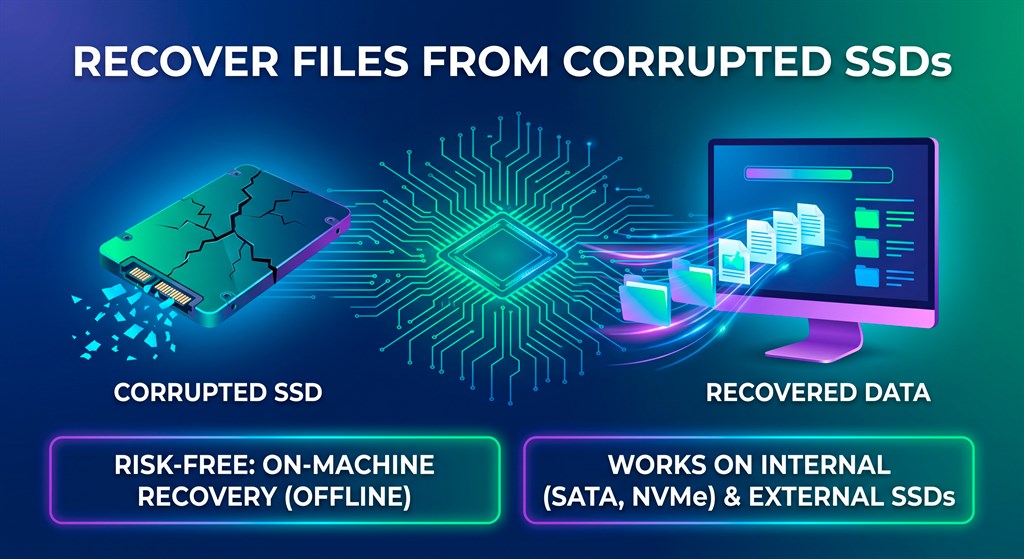
SoftOrbits Corrupted SSD Recovery Tool is SSD data recovery software for Windows. It recovers files from solid-state drives that have a logical problem: a RAW partition, a format prompt, a damaged file system, or a lost folder structure.
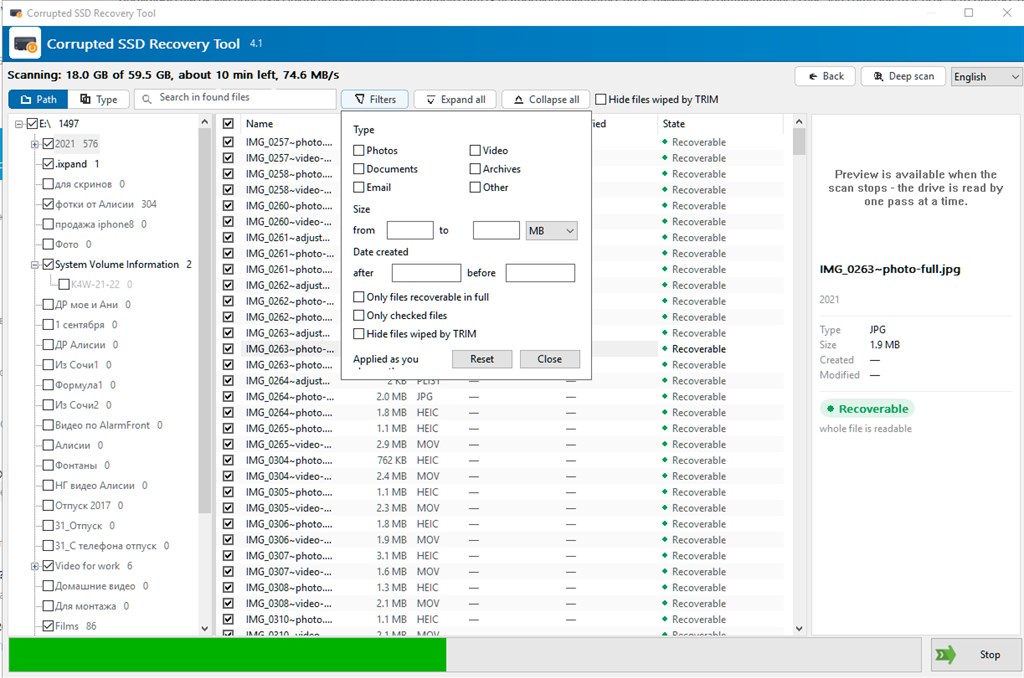
When the file system breaks or a volume turns RAW, the data usually stays in the storage cells. Only the map that points to it is damaged. The program rebuilds what it can from file system records with a Quick scan. It then searches the whole drive by file signatures with a Deep scan.
The tool is honest about its limits. Files you deleted yourself on an internal SSD with TRIM on are out of reach. A drive that the BIOS does not detect needs a lab, because the fault lies in the controller or firmware. Everything else is a software job that you can often finish at home in minutes.
What an SSD Can Still Give Back
TRIM decides what is recoverable. On an internal SSD, Windows sends a TRIM command when a file is deleted for good, and the controller clears the cells behind that file.
Within reach:
- A RAW partition, or one that prompts you to format it
- A damaged file system after a crash or power cut
- Files that were never deleted
- Deleted files on a portable USB SSD, where TRIM may not get through
Out of reach:
- Files deleted on an internal SSD while TRIM was on
- An SSD that the BIOS does not detect, which is controller or firmware work for a lab
Recovery in Three Steps
- Download and pick the drive. Install the tool and approve the administrator prompt. Without administrator rights it cannot open the volume of an internal drive. Pick the SSD in the drive list.
- Read the TRIM note, then scan. On an internal SSD with TRIM enabled, a note shows what was measured on that drive and asks if you still want to scan. Start with Quick scan. If it comes back empty, the program switches to Deep scan by itself.
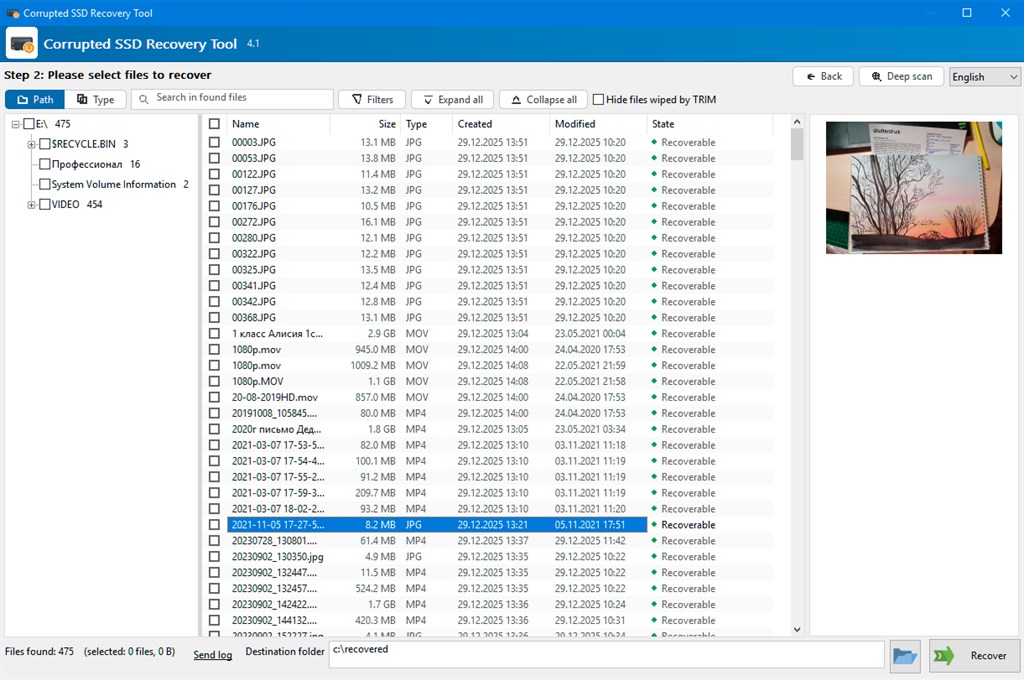
- Preview and recover to another drive. Click a file to see it in the preview pane, tick the files you need and press Recover. Choose a folder on a different drive.
Windows Says Format the Disk? Not Yet
That prompt rarely means your photos are gone. The index that points to them may be broken while the files remain where they were. If you click Format or let CHKDSK repair the volume, part of what was left gets overwritten. Copy the files off first and repair the drive afterwards.
Key Benefits
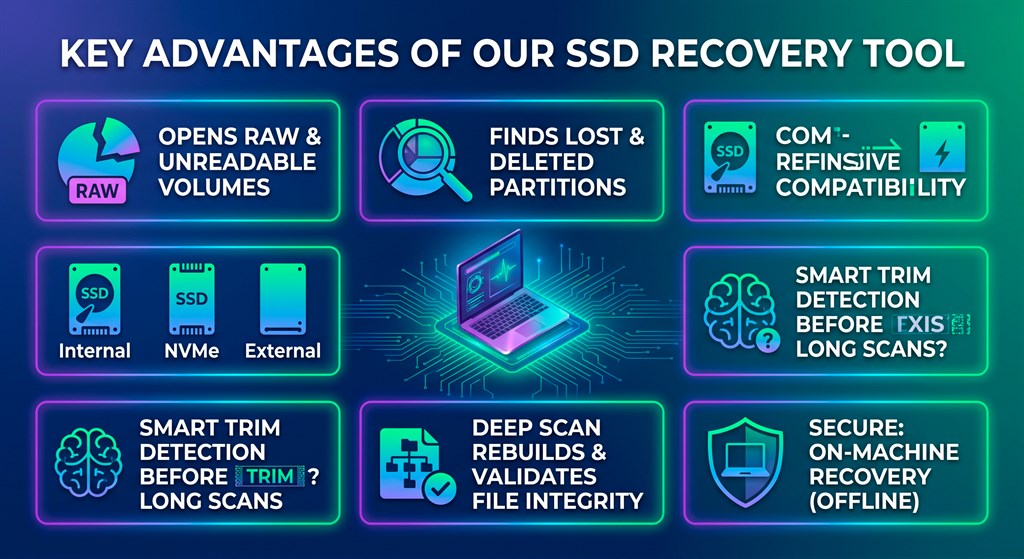
The tool is designed to save time, protect your data and stop you from paying for results that do not exist. The points below describe what you gain in practice.
Know the outcome before you wait. The TRIM check runs before the scan. On a drive where deleted files are already wiped, you hear it in seconds. You do not spend an hour on a list of empty files.
Pay only for results you can see. The trial runs the same scans as the full version and shows everything it finds. You open photos and documents in the preview first. You buy a license only when the files you need are there.
Protect what is left on the drive. The program reads the scanned drive and keeps its own work files on another disk whenever one is available. It also refuses to save recovered files to the source volume. This prevents the common mistake of overwriting the data you are trying to rescue.
Avoid false confidence. A results list can show thousands of names while every recovered document opens as zeros. On a TRIM drive, the full version marks each item that turns out blank as “wiped by TRIM”. The summary counts them, so an empty document is never mistaken for a good copy. A filter can hide them from the list.
Handle SSDs, USB drives and cards in one place. The tool works with internal NVMe and SATA drives, portable USB SSDs, flash drives and SD cards. You do not need a separate program for each device.
Try a home fix before the lab. If the SSD still shows up in Windows with a drive letter, the damage is often logical. A scan answers the question in minutes: are the photos and documents still there? Physical failures remain a lab case, and the tool says so plainly.
Who Can Benefit
- Laptop owners whose 512 GB data partition stopped opening after a forced update or a dead battery while Windows still boots.
- Photographers and video makers who keep shoots on a portable SSD and a stack of memory cards and need one tool for both.
- Repair shops and IT support teams who want to check a customer’s drive before quoting a lab. The TRIM note gives a measured answer that you can show the customer.
- Freelancers and small businesses whose project folders vanished after a crash and who need them back without a lab bill.
Why Choose This Tool
Good SSD recovery software checks, before scanning, whether TRIM has already cleared deleted files. You should be able to open a photo or document in the preview before you pay. You should also choose a program that refuses to save recovered files to the drive it scans. This tool does all three.
Features
The list below covers the main features of the tool and the sub features within each one.
- Drive List with Clear Labels – shows each volume with its media type and bus so you pick the right drive.
- Media Type – labels a volume as Internal SSD, USB flash drive and similar.
- Bus Column – tells NVMe from SATA, and USB from SD.
- Safety Tags – marks drives with TRIM on and the system drive to prevent a wrong pick.
- TRIM Check Before Scanning – measures the drive and reports what it can still return.
- Solid State Test – confirms the drive has no seek penalty.
- Device TRIM Support – reads whether the device reports TRIM support.
- OS Delete Notifications – checks whether delete notifications are turned on in Windows.
- USB Enclosure Handling – skips the check for an SSD in a USB enclosure, since many USB bridges do not pass TRIM.
- Quick Scan and Deep Scan – covers both fast record reading and full-drive searching.
- Quick Scan – reads file system records and finishes in seconds.
- Deep Scan – reads the whole drive, gives an estimate in minutes and counts down the time left.
- Automatic Switch – moves to Deep scan by itself when Quick scan finds nothing.
- File System Support – handles NTFS and exFAT, plus FAT32, FAT16 and FAT12 on older or smaller volumes.
- Signature Search for 34 File Types – finds files by their internal structure when file records are lost.
- 7 File Groups – sorts results into Photos, Camera RAW, Documents, Archives, Video, Audio and Other.
- Structure Checks – verifies most types, such as JPG and PNG, against their internal structure and not just the first bytes.
- Office Detection – moves DOCX, XLSX, PPTX and ODT files out of ZIP results based on their contents.
- Name Note – files found this way come back without original names and folders.
- Preview Pane – lets you check files before saving anything.
- Built-in Picture Display – draws pictures by itself for files up to about 10 MB.
- Document Preview – uses the Windows preview handlers of installed apps.
- Partial Marking – flags a file with bad sectors as partially recovered.
- Search and Filters – helps you find the right files among thousands of results.
- Folder and Type Browsing – lets you browse found files by folder path or type.
- Name Search – finds files by name.
- Size and Date Filters – narrows the list by file size or date.
- Full Recovery Filter – shows only files recoverable in full.
- Safe Recovery Output – keeps the source drive untouched.
- Separate Destination – asks for a folder on a different drive.
- Source Refusal – rejects the scanned volume as a save location.
- Wiped by TRIM Label – marks blank recovered items on TRIM drives in the full version.
File Types Found by Signature
| Group | File types | How a found file is checked |
|---|---|---|
| Photos | JPG, PNG, GIF, BMP, PSD | Structure check, except PSD, which is matched by header |
| Camera RAW | TIFF, ORF, RW2, RAF | TIFF-based files are read tag by tag; RAF is matched by header |
| Documents | PDF, DOC, RTF, DOCX, XLSX, PPTX, ODT | PDF and DOC get a structure check; newer Office files and ODT are sorted by contents |
| Archives | ZIP, RAR, 7Z, GZ, BZ2, XZ, CAB, JAR | ZIP, RAR and 7Z by structure, the others by header |
| Video | MP4, AVI, MKV, WMV, FLV | MP4 and AVI by structure, the others by header |
| Audio | MP3, FLAC, OGG | Matched by header |
| Other | SQLite databases, EXE programs | Both checked by structure |
Common Questions Answered
Can I recover files deleted from an internal SSD? Almost never. Windows sends TRIM when a file leaves the Recycle Bin or is removed with Shift+Delete, and the controller clears the cells within seconds. Check the Recycle Bin and any backup first. A file that only went to the Recycle Bin was never trimmed, and Restore brings it back in one click.
What about a USB SSD? Odds are often better. Many USB enclosures, older ones especially, do not pass TRIM through, so deleted files can survive. Newer UASP enclosures can pass TRIM, though, and then a delete can be final there too. A quick format on a USB SSD often leaves the data in place. On an internal SSD, Windows may trim the whole volume during the format, and little survives.
Why do some recovered files open as blank? TRIM tells the controller that those blocks are free, so it returns only blank data while the file table still lists the names. The tool checks every block of each file it recovers from a TRIM drive and marks the all-blank ones as wiped by TRIM.
Does it work on M.2 drives? Yes. M.2 is a form factor, and the drive inside is NVMe or SATA. Both appear with their bus type. The one condition is that Windows gives the volume a drive letter.
When do I need a lab? A drive the BIOS no longer detects needs a lab, and the lab quotes after it diagnoses the controller or firmware. A RAW volume, a lost partition or a broken file system is a software job.
What should I do first when the drive fails? Stop writing to it. Install the recovery tool on a different disk if you can, because the installer can land on cells that still hold your files. Then scan the SSD. Typical warning signs are a RAW drive in Disk Management, a format prompt when you open the drive, vanished folders, or read errors when you copy files.
Requirements
- Windows 11/10/8.1/8/7 (32/64 bit)
- Intel i3, AMD Ryzen 5 or above
- 4 GB of RAM or above
- NVIDIA GeForce series 8 and 8M, Intel HD Graphics 2000, Quadro FX 4800, Quadro FX 5600, AMD Radeon R600, Mobility Radeon HD 4330, Mobility FirePro series, Radeon R5 M230 or higher graphics card with up-to-date drivers
- 1280 x 768 screen resolution, 32-bit color
- 1 GB of free hard disk space or above
Free to Try
See how SoftOrbits Corrupted SSD Recovery Tool handles your own drive before you spend anything. Download the free trial and run the scans by clicking the button below. The trial runs the same scans as the full version and shows everything it finds. Only saving is locked.
| Feature | Trial (free download) | Full version (license key) |
|---|---|---|
| TRIM check before the scan | Yes | Yes |
| Quick scan and Deep scan of NVMe, SATA and USB drives | Yes | Yes |
| Signature search for 34 file types | Yes | Yes |
| Preview of photos and documents | Yes | Yes |
| Search by name, filters by size and date | Yes | Yes |
| Saving to disk | No | Yes |
| “Wiped by TRIM” label on blank files | No | Yes |
Windows (Official Website) Windows (Microsoft Store)
or
Buy now, the price start from:
Thank you for reading SoftOrbits Corrupted SSD Recovery Tool review, and enjoy the discount coupon. If you notice any issues with SoftOrbits Corrupted SSD Recovery Tool discount coupon, deal, or giveaway—such as an expired offer, broken link, or sold‑out promotion—please let us know while the deal is still available.


